
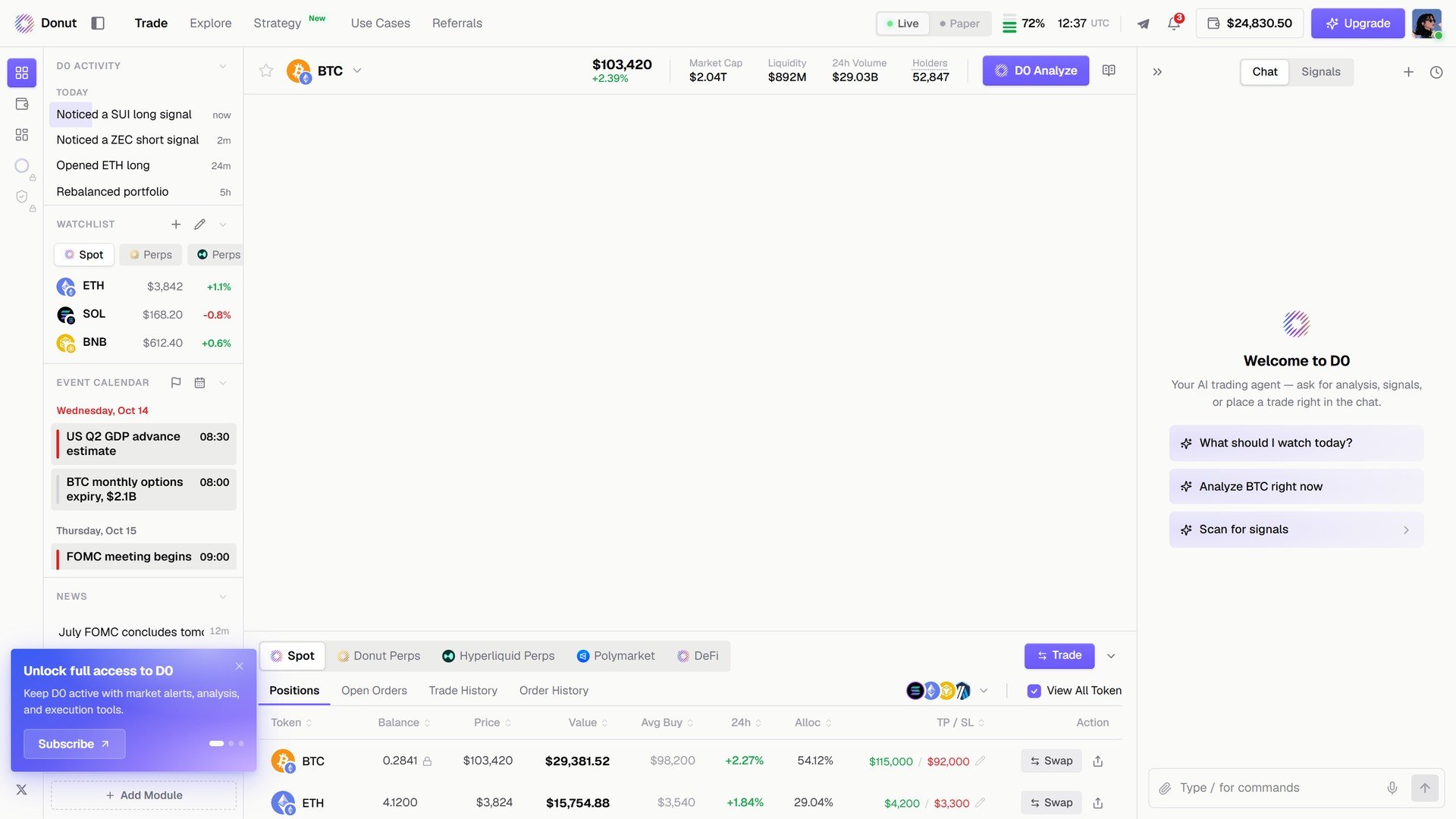
The Trade view.
Layout
The market header and positions
The header shows the selected market: price and 24h change, Market Cap, Liquidity, 24h Volume, Holders, and the D0 Analyze button. Click the token name to switch markets; click ★ to add it to your Watchlist. Below the chart, one tab per venue: Spot, Donut Perps, Hyperliquid Perps, Polymarket, DeFi. Each venue has Positions, Open Orders, Trade History, and Order History. The Trade button opens the order modal. See The Trade Panel.The chat
The right panel opens on Welcome to D0: Your AI trading agent — ask for analysis, signals, or place a trade right in the chat. Three prompts get you started: What should I watch today?, Analyze BTC right now, Scan for signals. The composer at the bottom says Type / for commands; the microphone takes voice.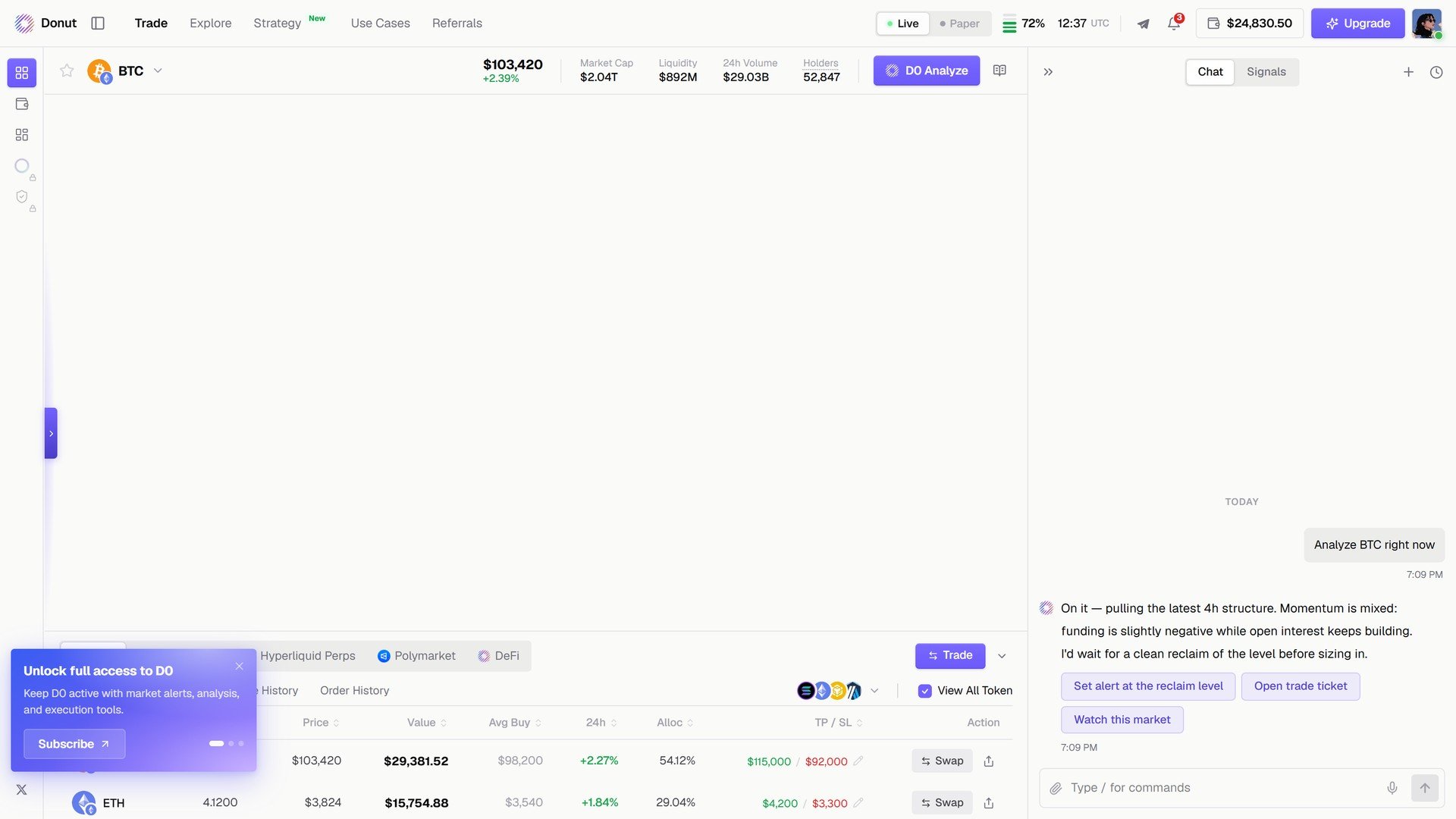
Analyze BTC right now: the answer, and three things you can do with it.
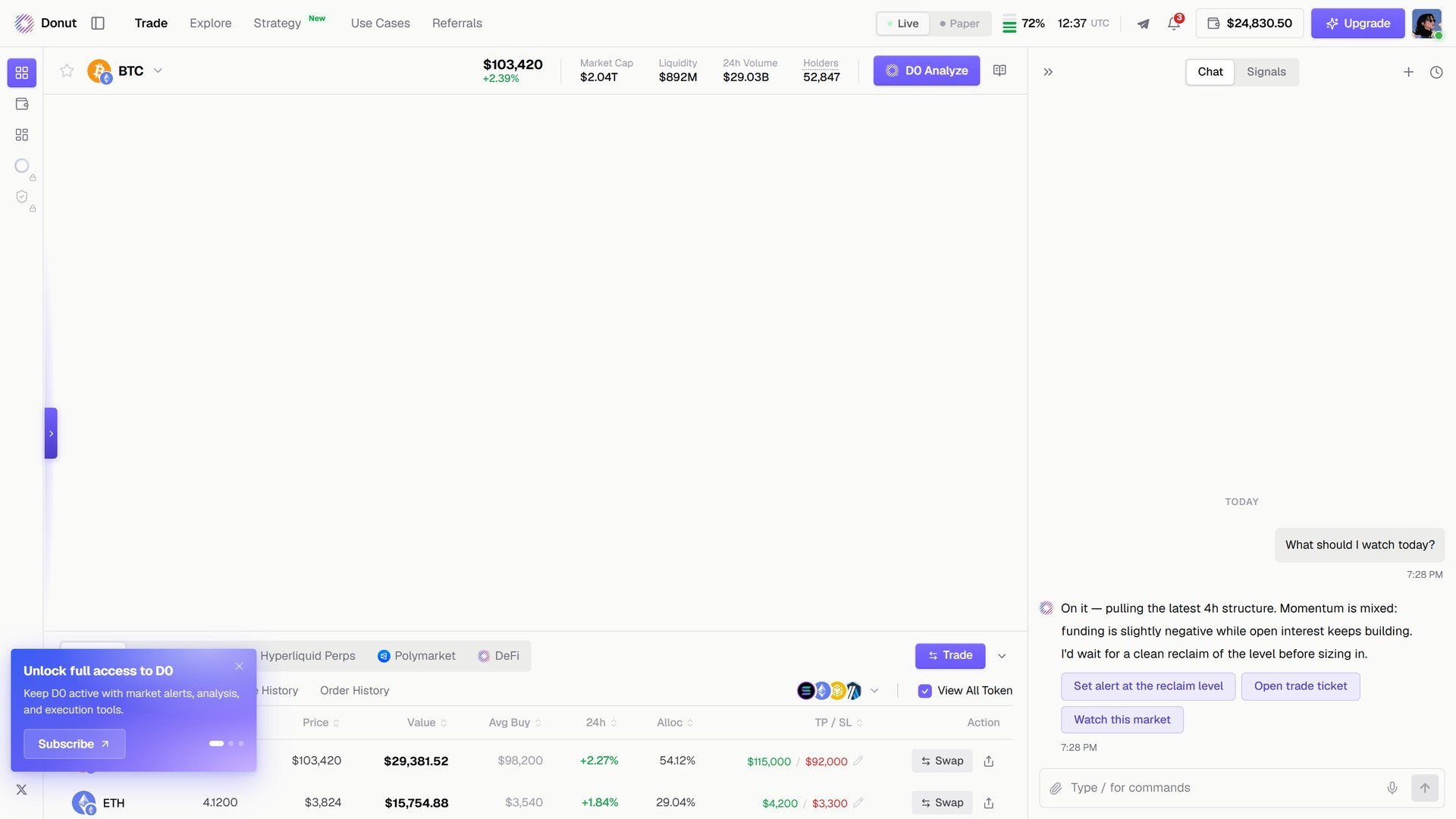
What should I watch today?
The Signals tab
Switch the right panel to Signals and the cards D0 is tracking line up: market, direction, Valid or expired, entry, target, stop, and How it trades in one line. Execute LONG or Execute SHORT opens the order; Dismiss clears the card. See Signals.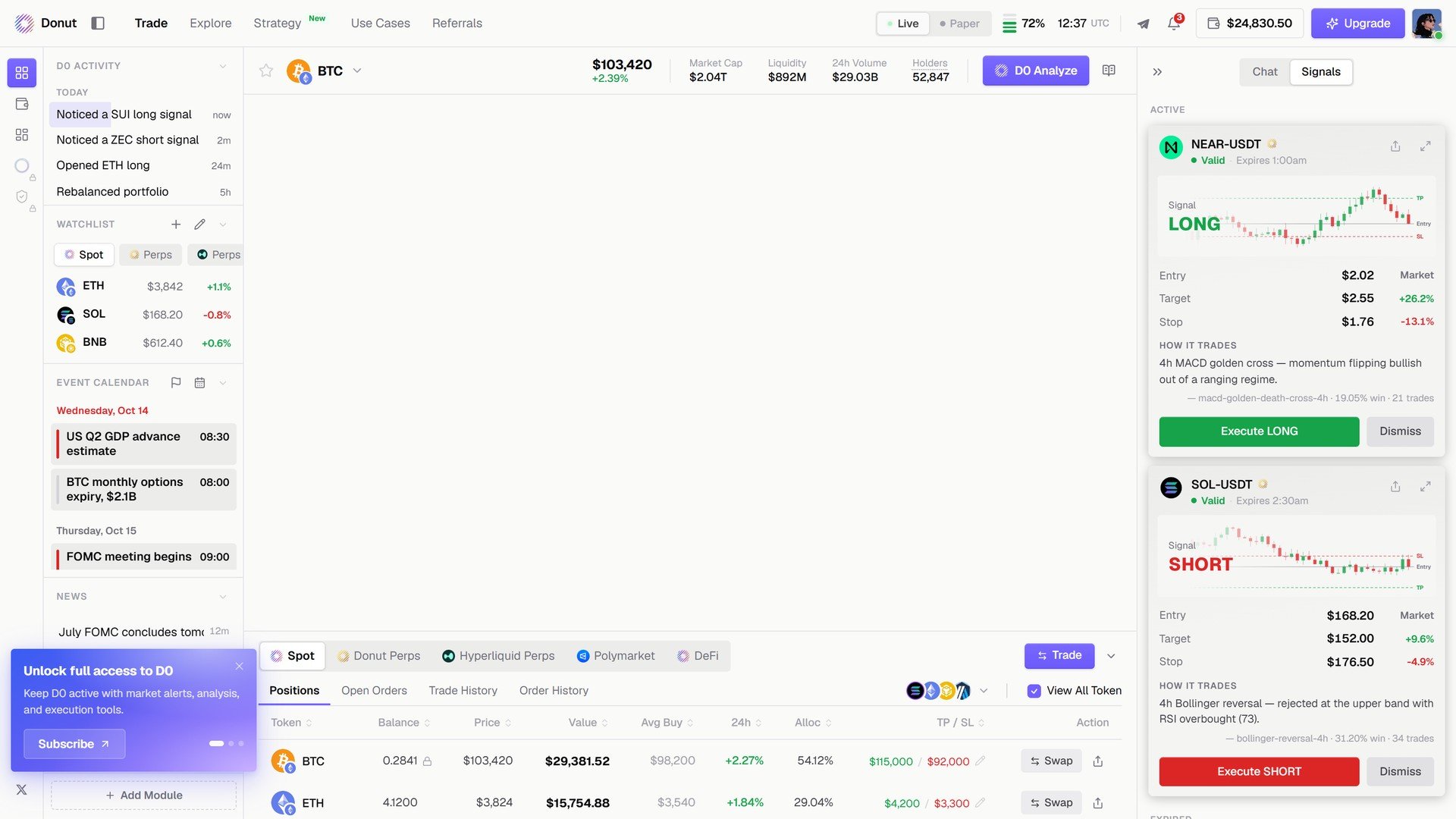
The Signals tab.
The left panel
- D0 Activity: what D0 did and noticed, newest first (Noticed a SUI long signal, Opened ETH long, Rebalanced portfolio).
- Watchlist: your starred markets with price and 24h change, split into Spot and Perps.
- Event Calendar: dated macro and crypto events with times.
- News: headlines with age.
- + Add Module: add Manual Trade, Automation, Positions, or Portfolio to the panel.
The four core workflows
Research a market
Research a market
Click D0 Analyze on any market, or ask in chat. D0 answers with the read and three follow-up actions. See D0 Analyze.
Place a trade
Place a trade
Click Trade under the chart, pick Spot or Perps, fill the order, confirm. Or take a signal card’s Execute button. See The Trade Panel.
Run a strategy
Run a strategy
Open Strategy, pick a strategy in the library, click Run strategy, set leverage, capital per signal, and a daily loss cap. See Strategy Library.
Review your portfolio
Review your portfolio
Open Portfolio in the left rail. Every venue in one book, with Ask D0 for a risk read. See Portfolio Overview.