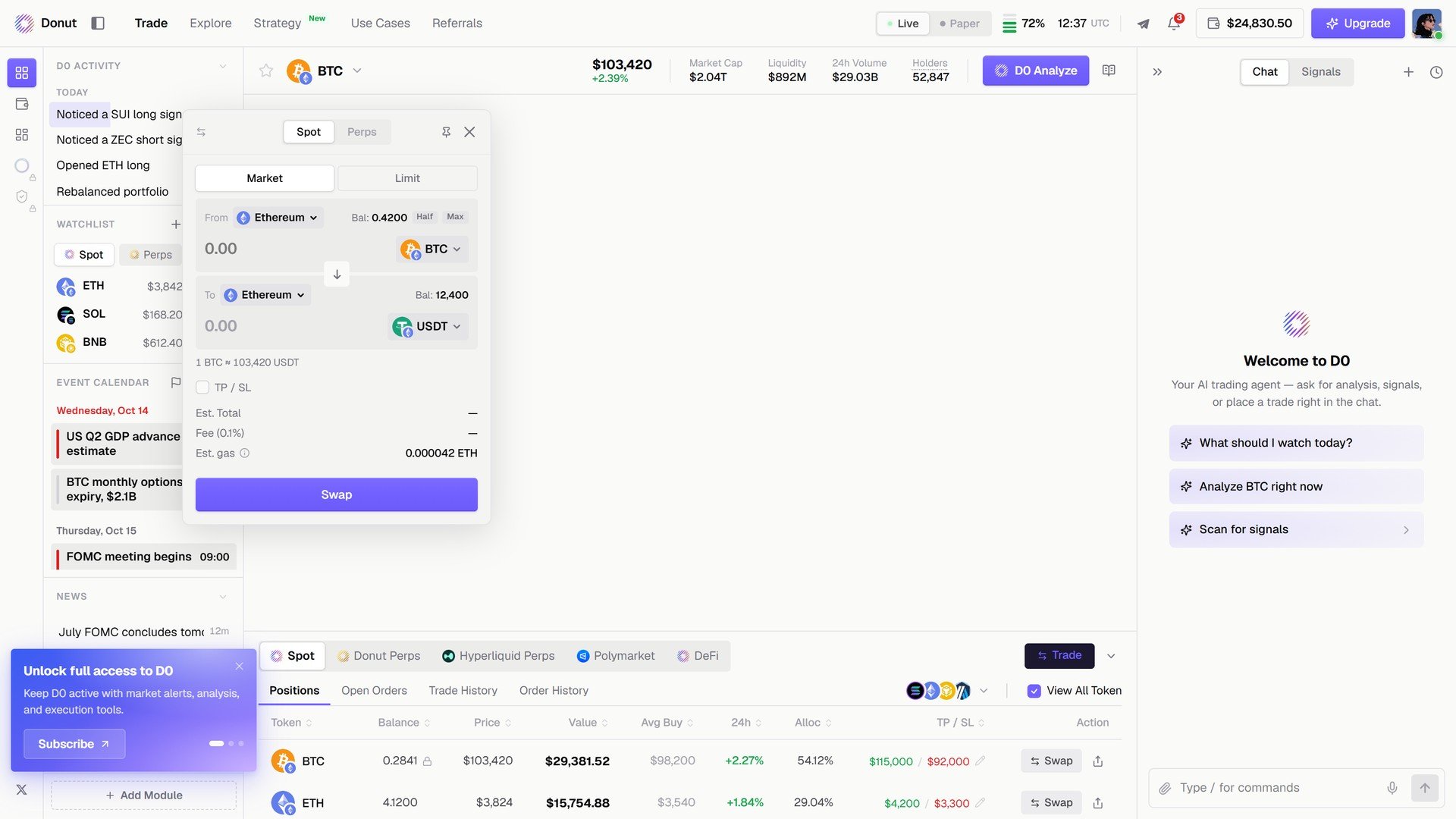
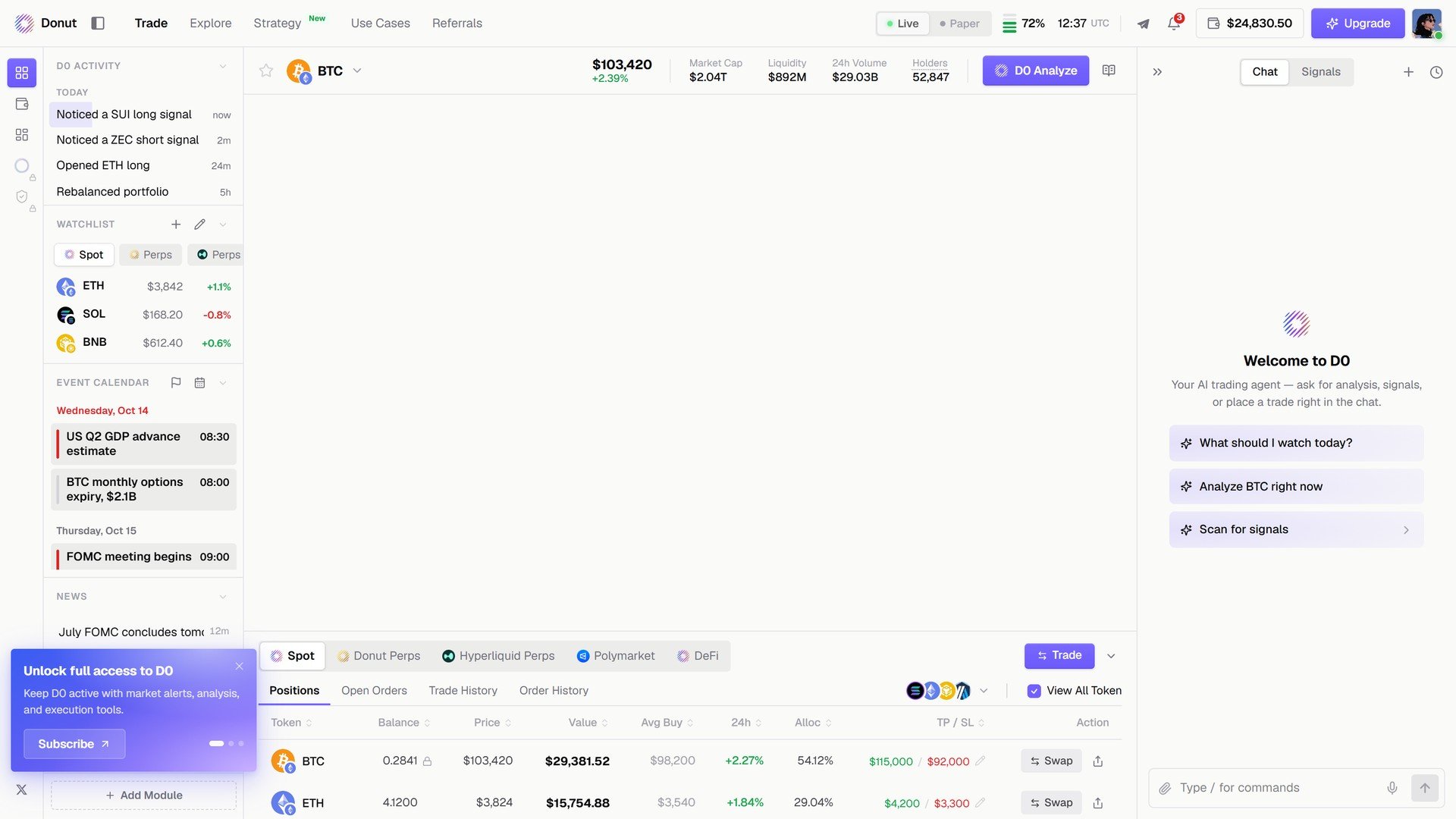
Trade is the first tab in the top bar and the console’s home. The market header and chart sit in the center, your positions across every venue sit below them, and the order modal opens from the Trade button.
The Trade view: market header, chart area, venue tabs, positions table, and the chat panel

The Trade view with BTC selected.

What you can do

The five venues

Placing an order

Click Trade under the chart. The order modal has two tabs: Spot and Perps.

Spot

Click Swap to confirm.
The Spot order modal with From, To, Half and Max, TP/SL, Est. Total, Fee, and Est. gas

The Spot tab.

Perps

Click the execute button (for example Long BTC-USDT) to confirm.
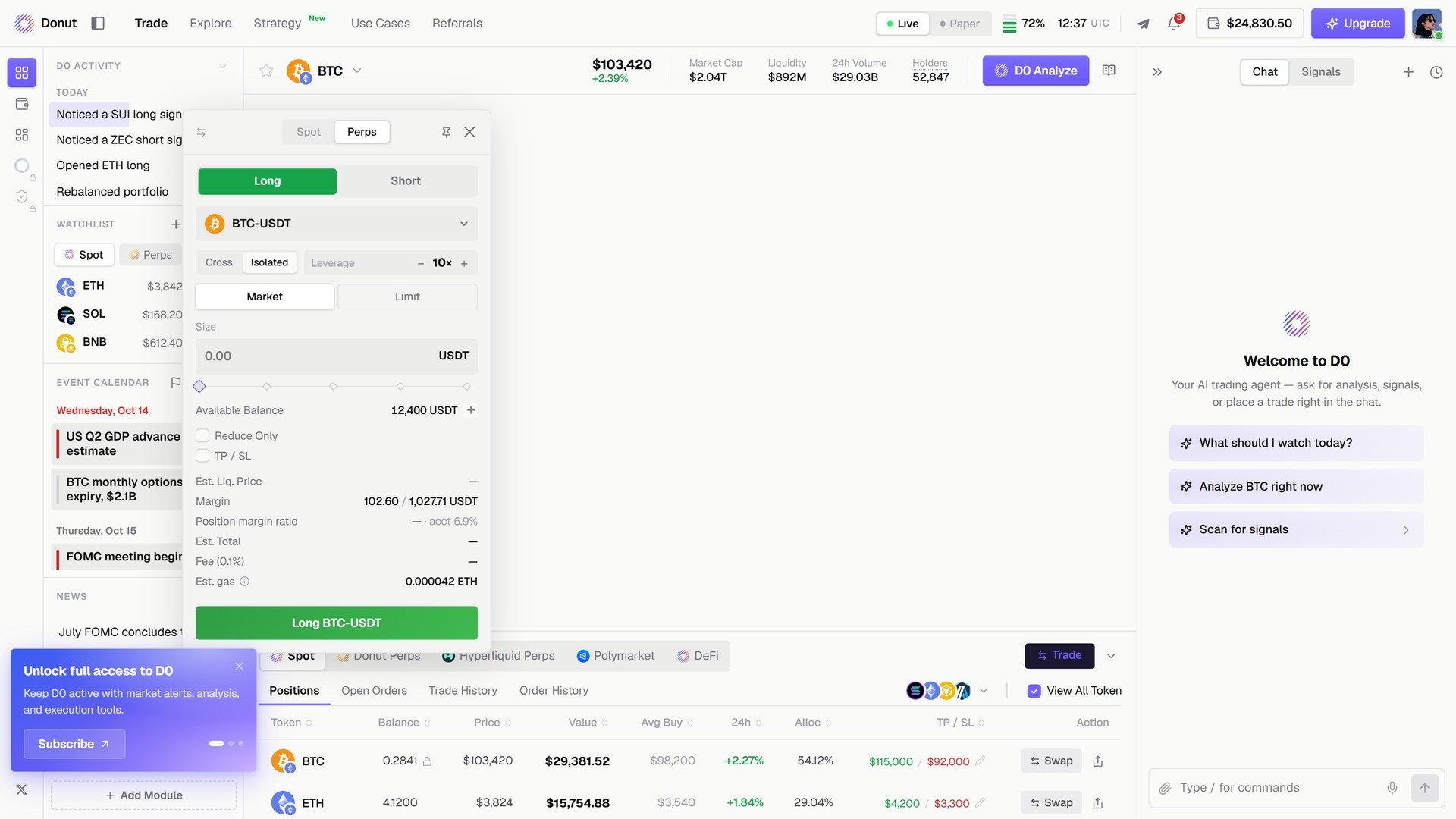
The Perps order modal with Long/Short, Cross/Isolated, Leverage, Size, Reduce Only, TP/SL, and Est. Liq. Price

The Perps tab.

Positions, orders, and history

Each venue tab has four views: Positions, Open Orders, Trade History, Order History. A chain filter and View All Token sit on the right.
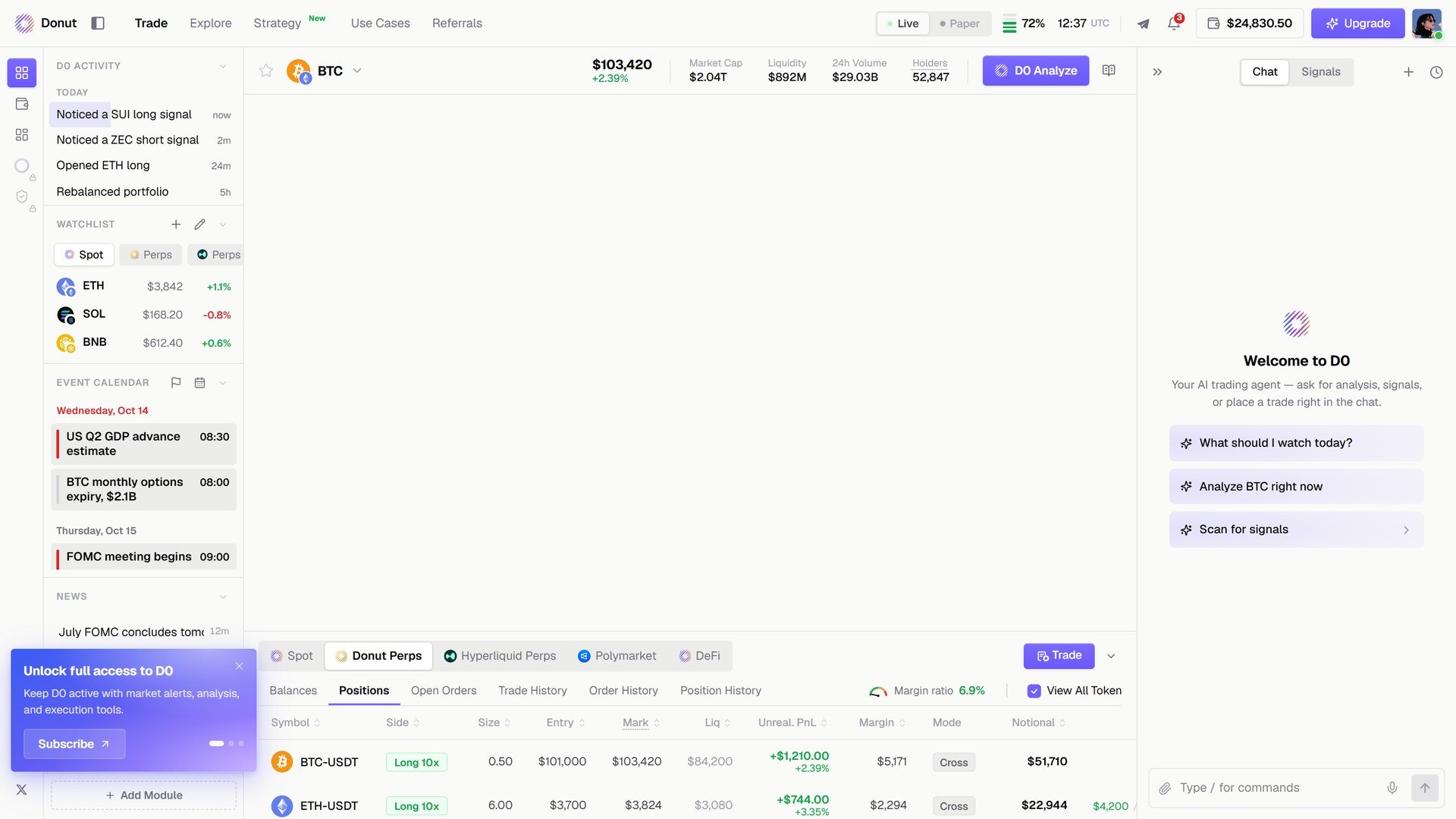
The Donut Perps Positions tab

Donut Perps positions: side, size, entry, mark, PnL, leverage, margin, and a Close button per row.
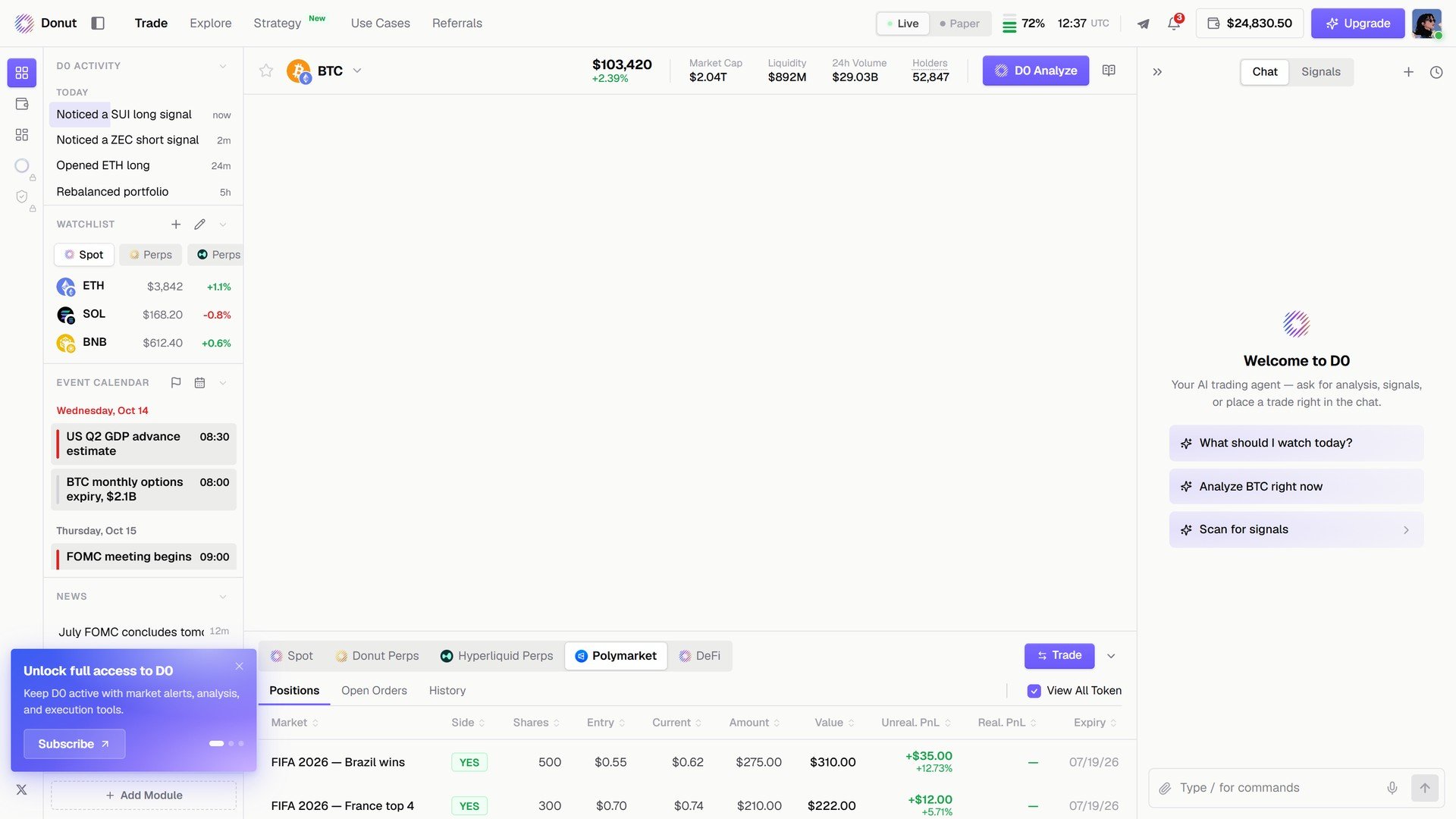
The Polymarket Positions tab

Polymarket positions: market, side, shares, entry, current price, value, unrealized PnL, resolution date.
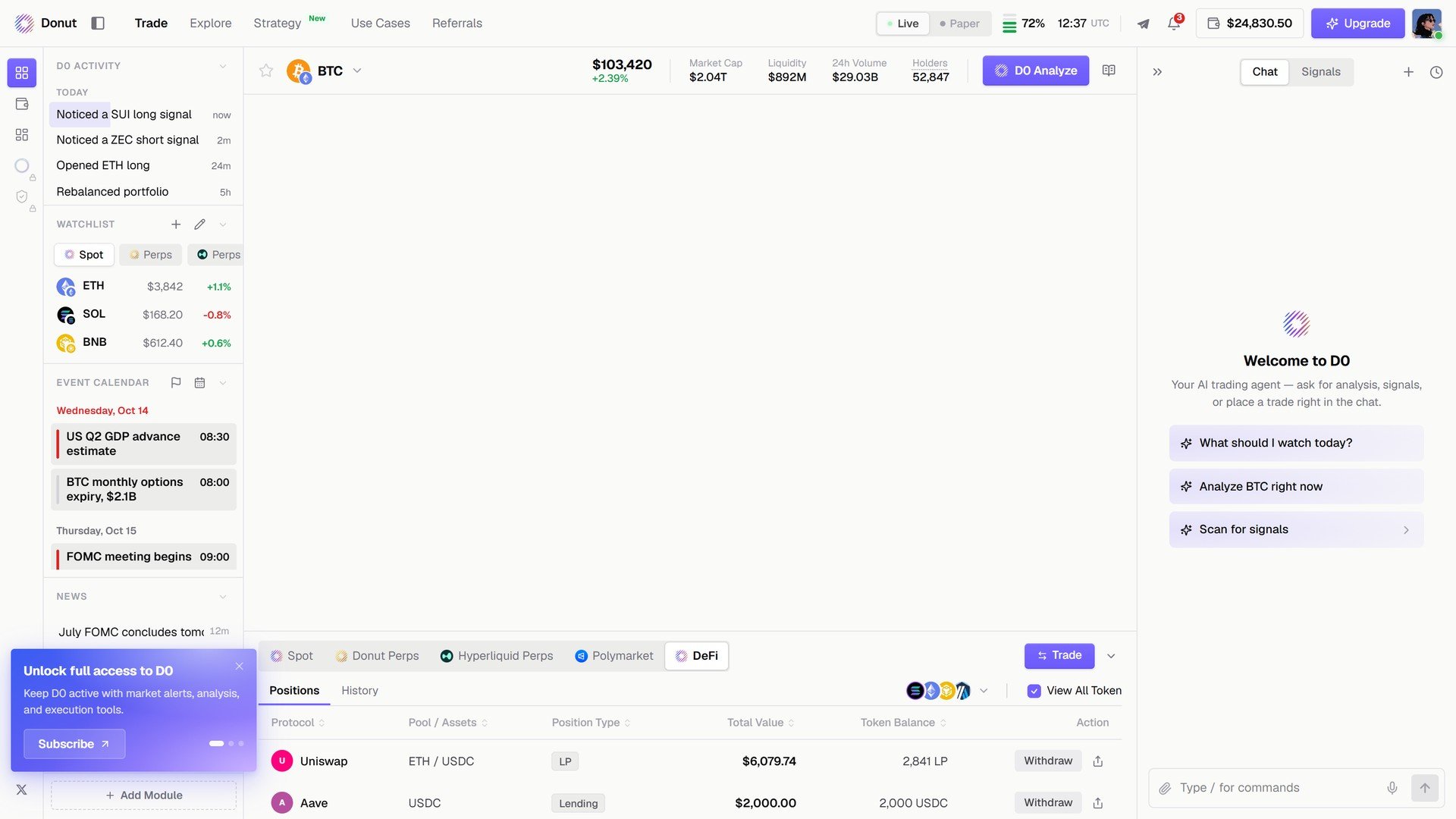
The DeFi Positions tab

DeFi positions: protocol, pool or asset, type, value, and a Withdraw action.
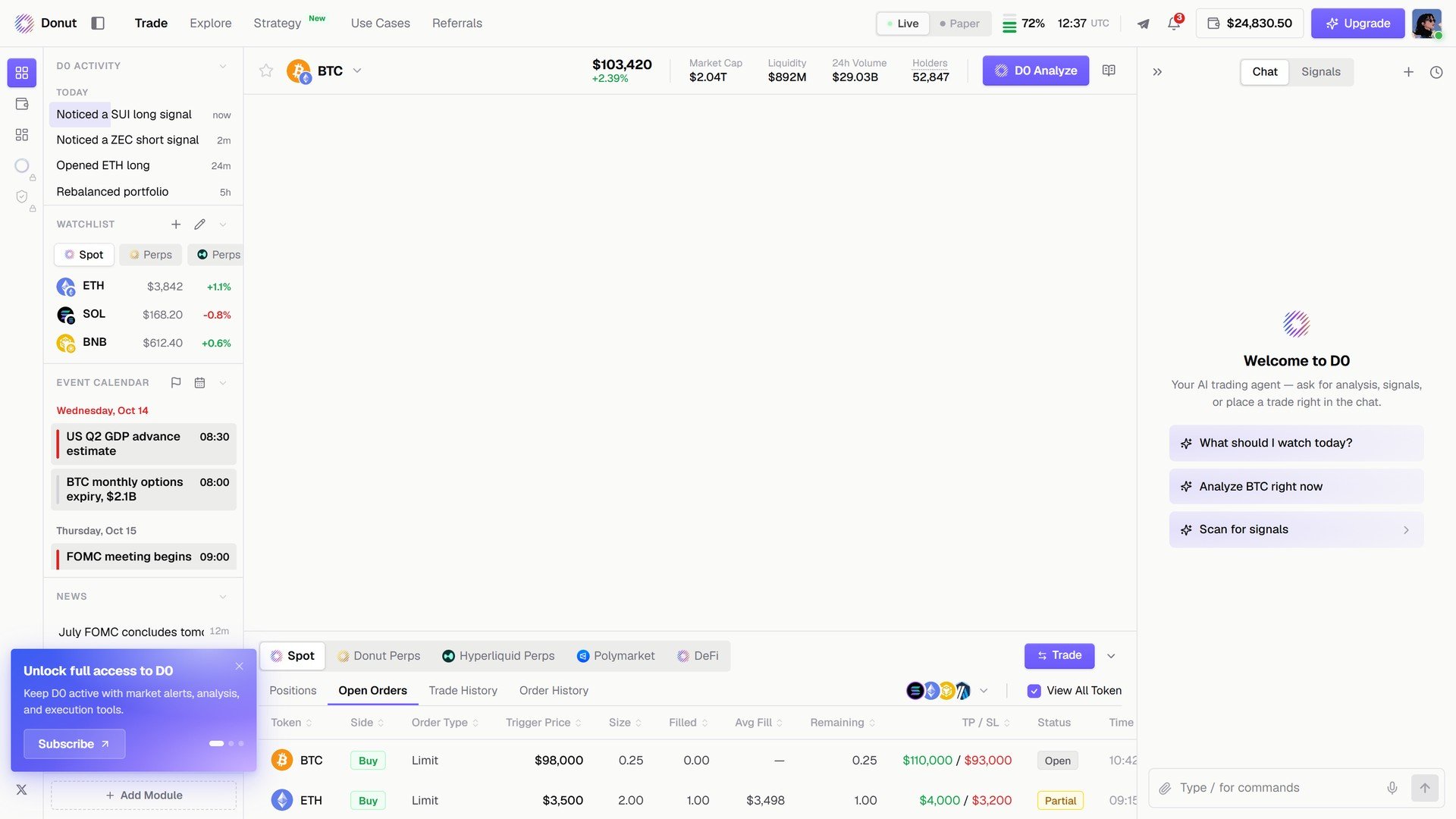
The Open Orders tab

Open Orders: pending limit orders with trigger price, filled amount, and status.
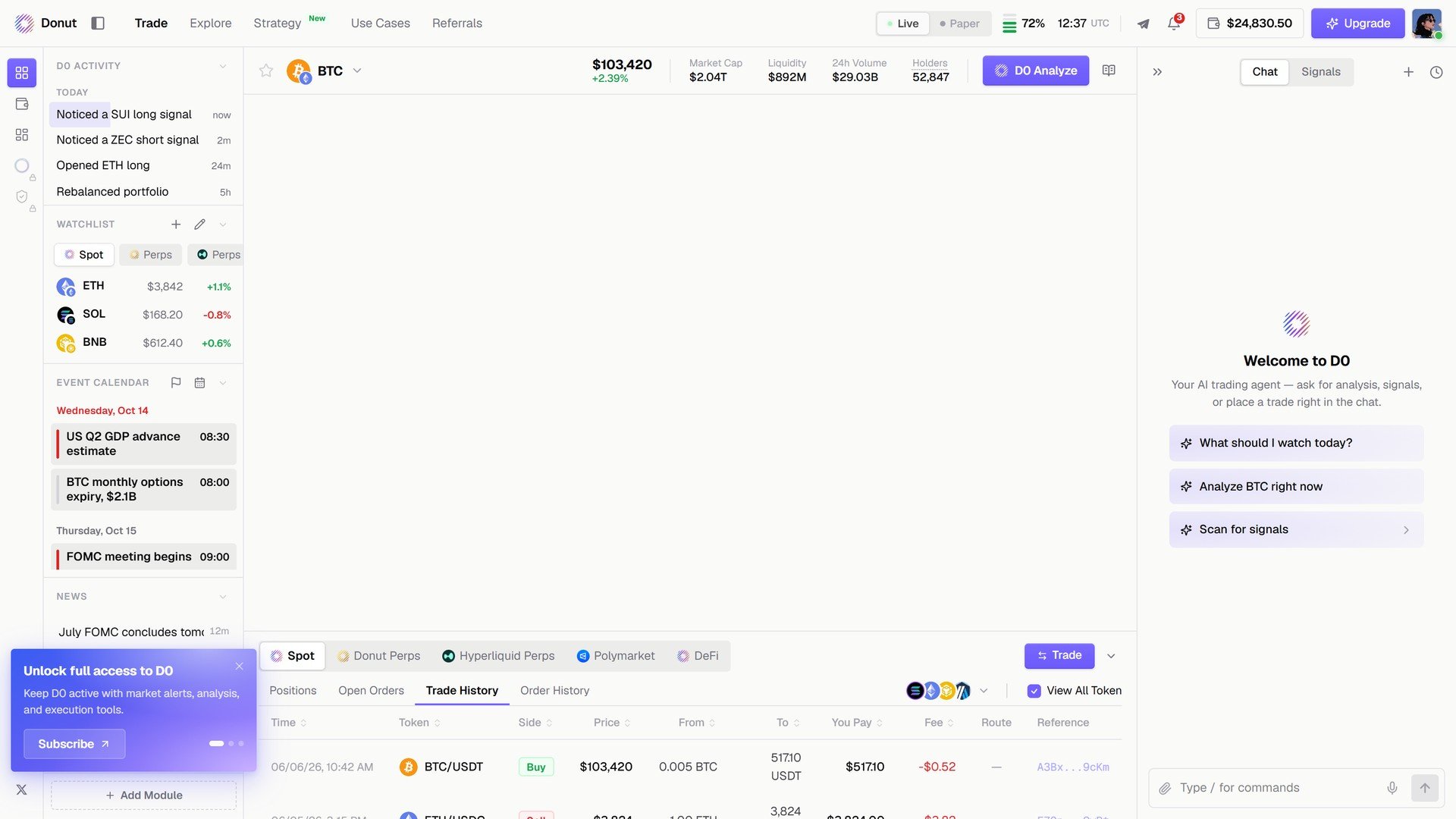
The Trade History tab

Trade History: fills with price, amount, fee, and route.

Tips

Use Isolated margin when testing a new setup. Cross margin puts your whole balance at risk if the trade goes against you. Isolated caps the loss to what you put in.
Set TP/SL before you confirm. Once the order is in, the bracket is live. You can still edit it from the positions table, but it is easier to get it right upfront.
Signals execute from the card. A signal card’s Execute LONG or Execute SHORT opens the same modal, pre-filled. See Signals.

What’s next