
A full tour of Dashboard 3.0.
Navigation
The top navigation bar has four sections.Overview
This is your home base. You’ll see your wallet summary, live K-line charts, open positions, and a feed of recent activity. Everything you need to know at a glance without asking D0 anything.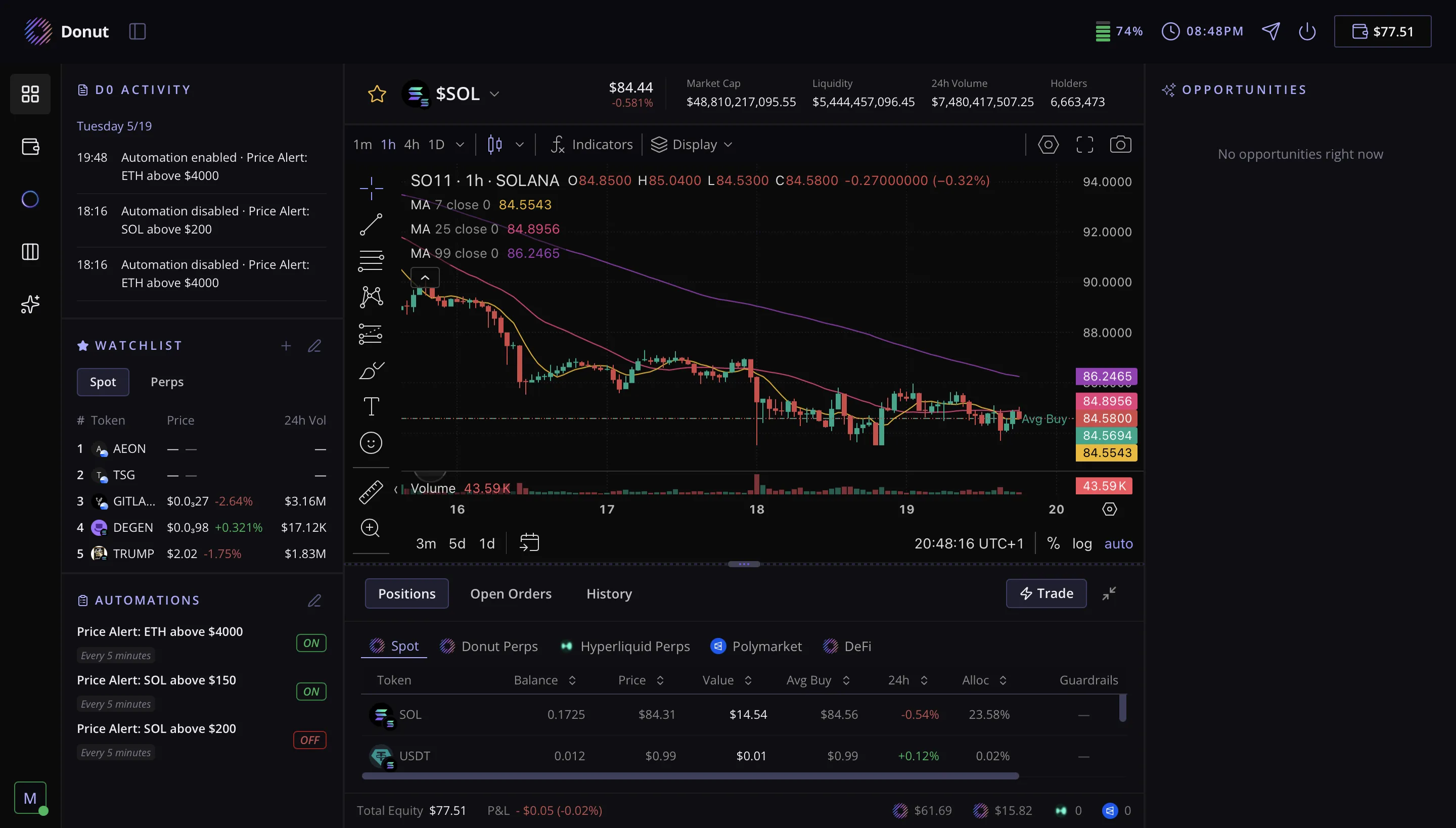
Skills
D0 has 200+ trading tools built in. This is where you can browse all of them, organized across 11 domains — research, trading, DeFi, perps, and more. If you’re ever wondering whether D0 can do something, check here first.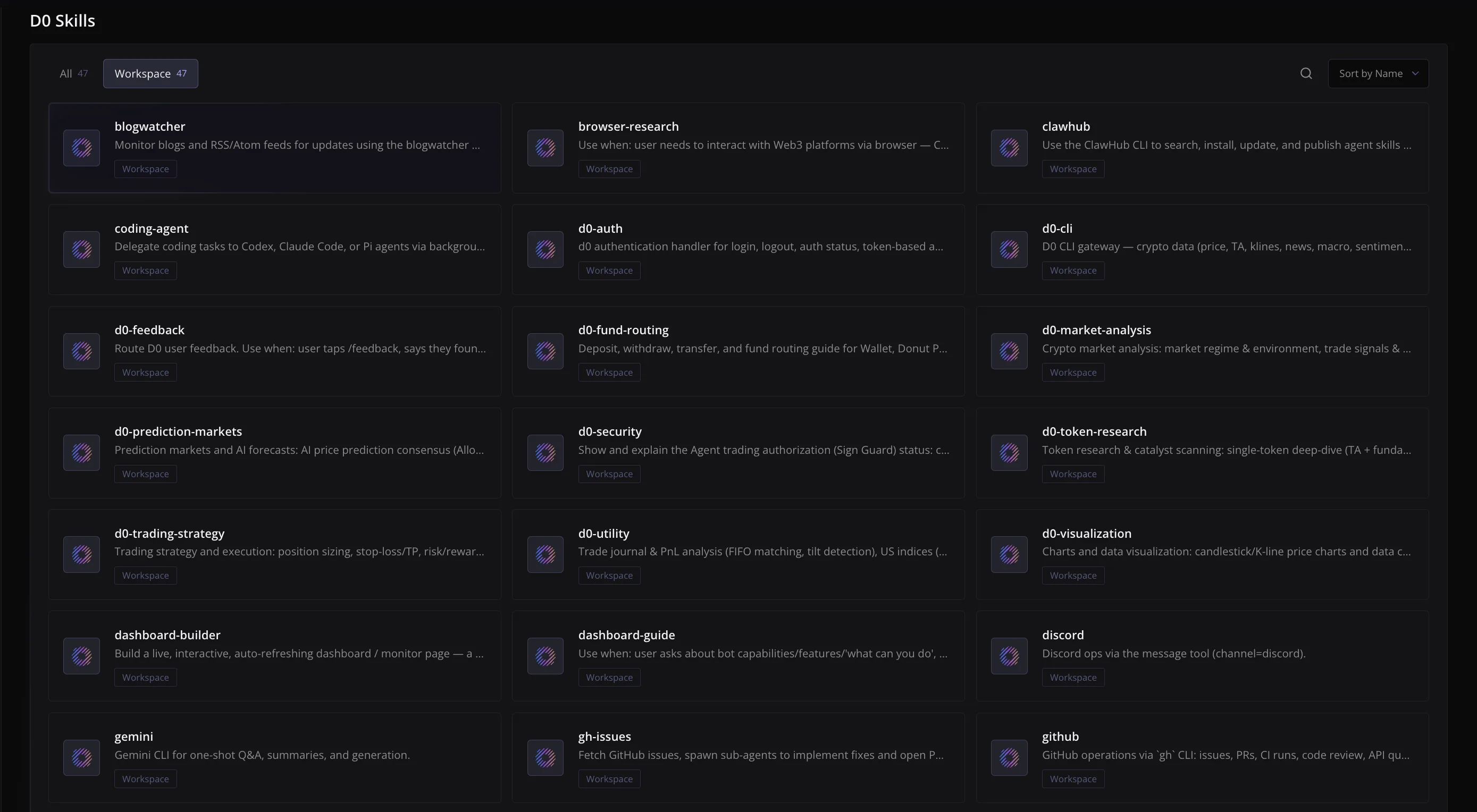
Automations
Any scheduled task, price alert, or recurring report you’ve set up lives here. You can turn each one on or off individually without touching the chat.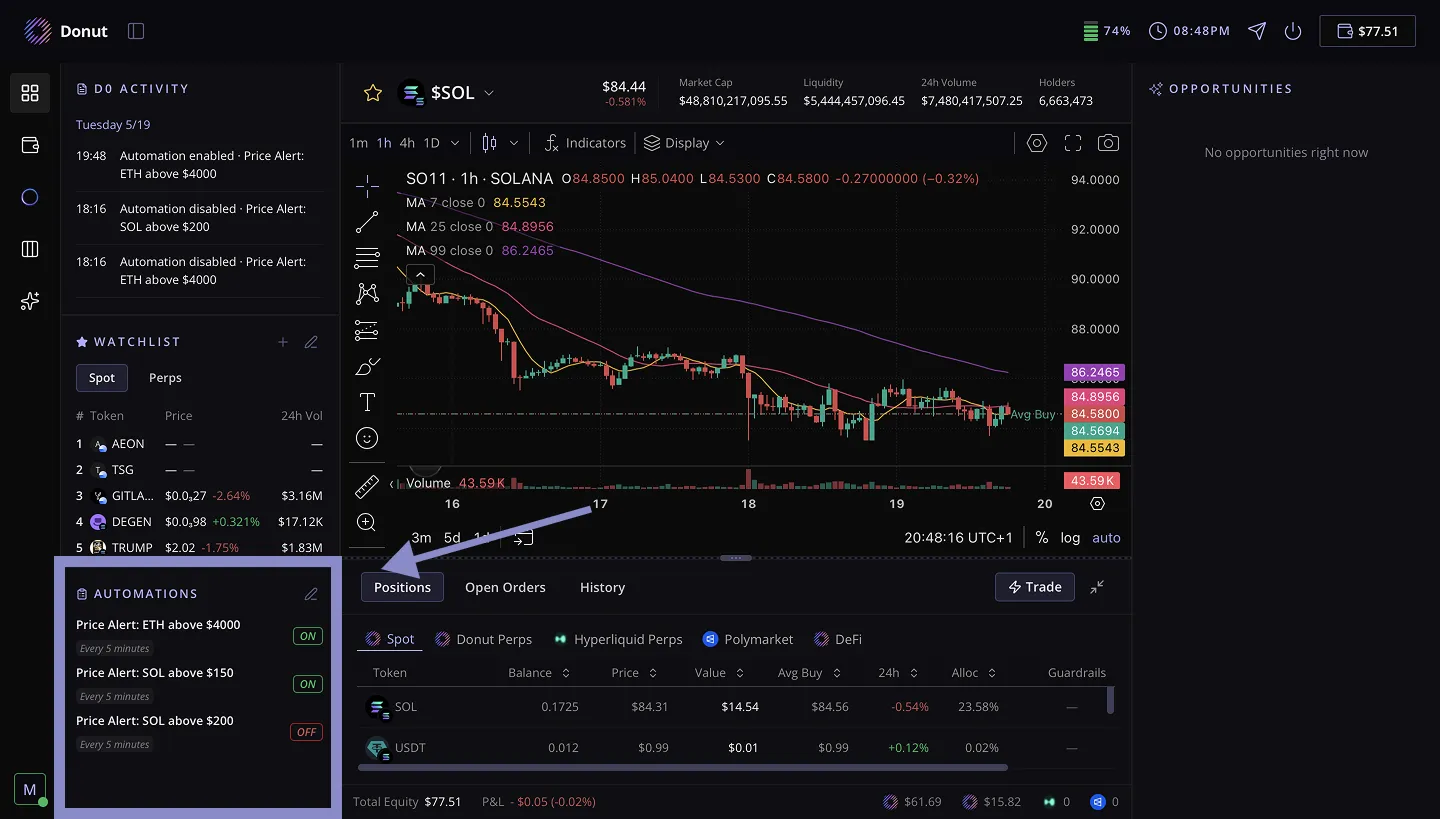
Profile
Your trading behavior profile, LLM usage breakdown, and account settings. D0 builds your profile from your actual trading activity over time, not from a survey.D0 Home (Overview Tab)
This is the first thing you see when you open the Dashboard. Three columns, everything live.Activity & Automations
At the top is your D0 Activity feed — a running log of everything your agent has done. Trades executed, alerts triggered, reports generated, all timestamped. Below that is your Watchlist with Spot and Perps tabs. Star any token from the trade page to add it here. Below that are your Automations — every scheduled task D0 is running for you, each with an ON/OFF toggle.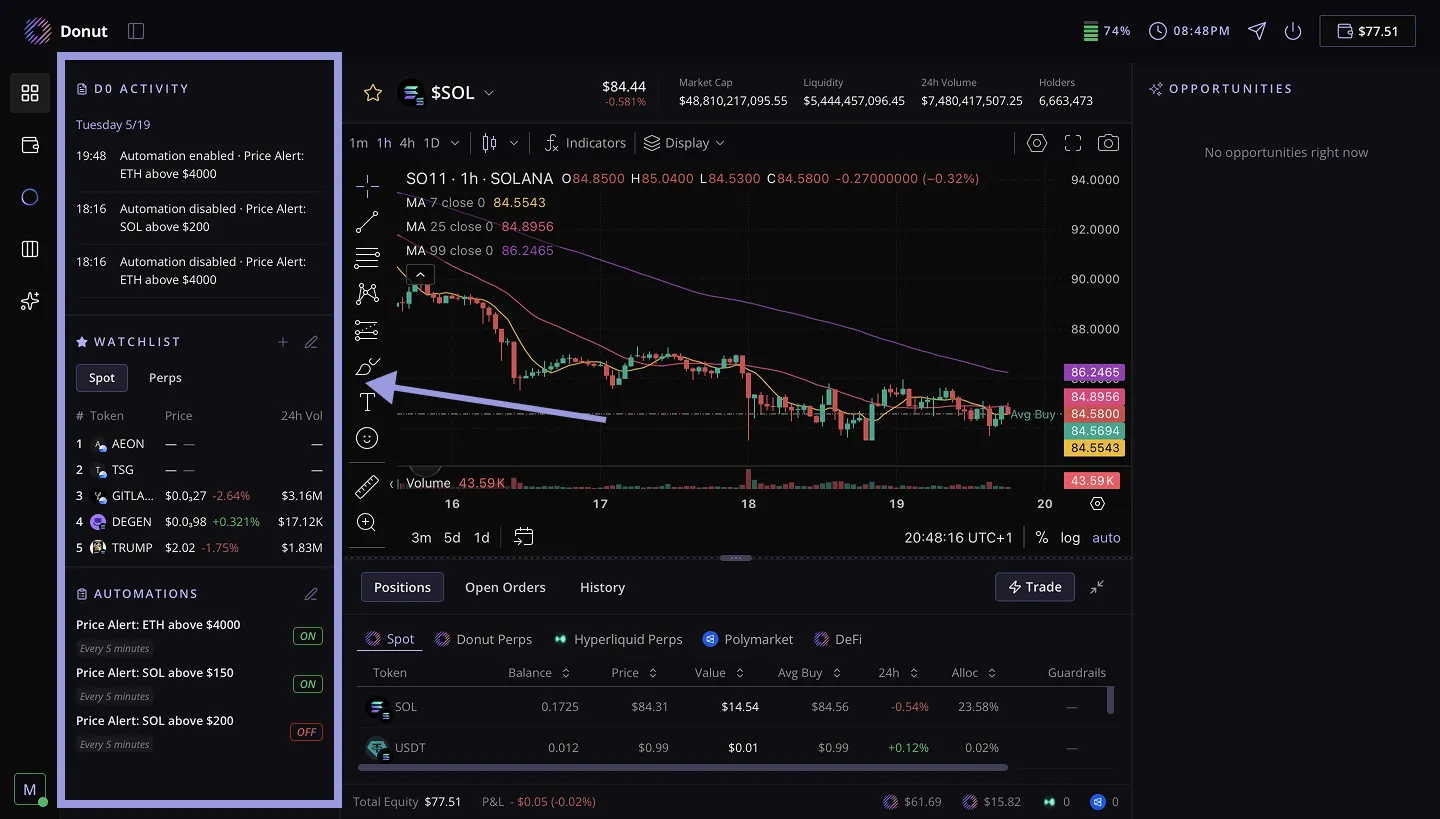
Chart & Positions
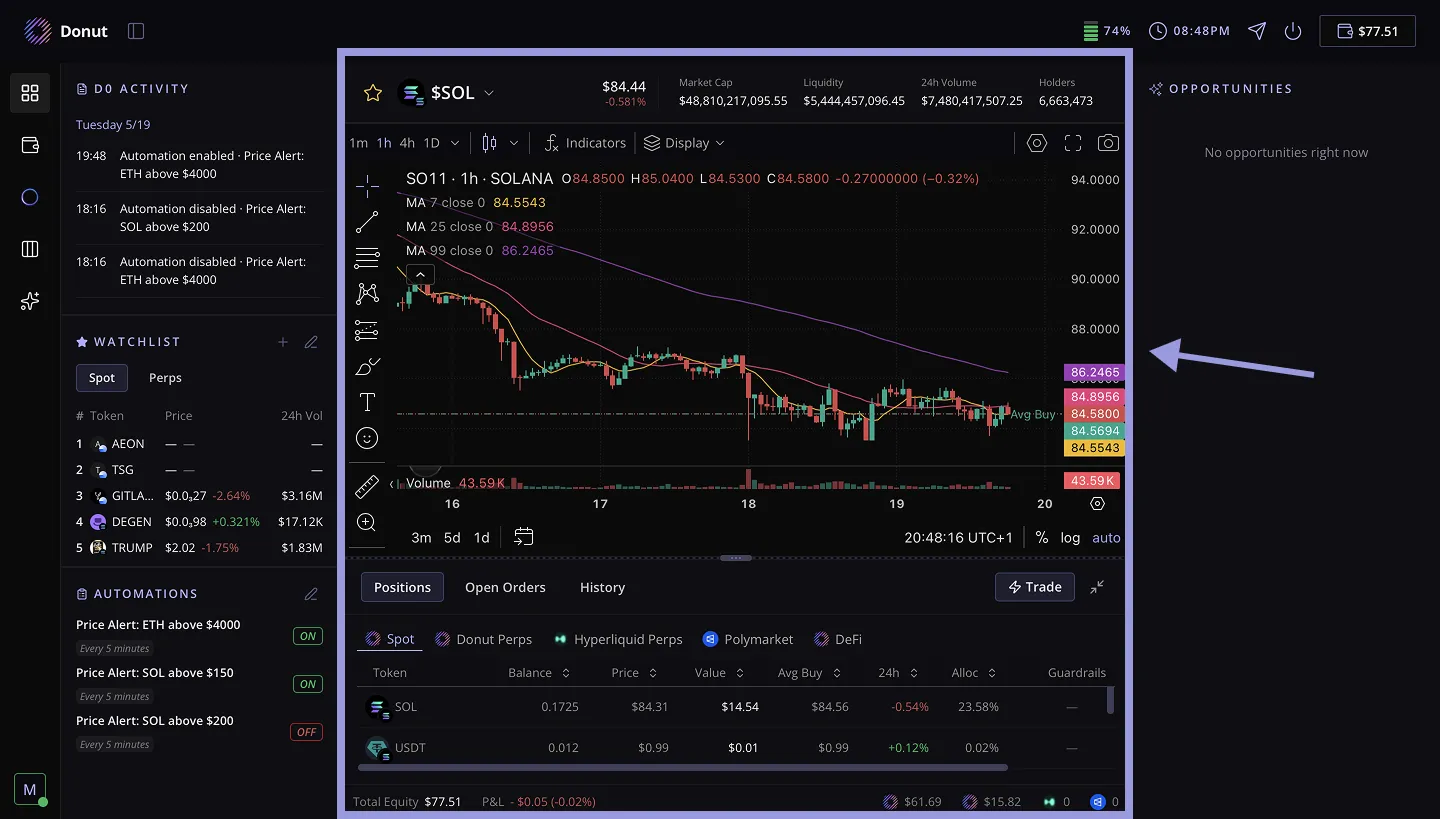
At the top is the token selector. Type any token name or symbol and it pulls up the K-line chart, market data, and trading options instantly. The K-line chart sits below it with timeframes from 1m to 1D. Switch pairs from the market list on the right of the chart. It updates live, no refresh needed. Below the chart you have three tabs:- Positions — All open positions across Spot, Donut Perps, Hyperliquid Perps, Polymarket, and DeFi. Each row shows token, chain, balance, price, value, average buy, and 24h change.
- Open Orders — Pending limit orders and TP/SL waiting to fill. You can cancel any order with one click.
- History — Every trade you’ve executed with timestamps, entry/exit prices, realized PnL, and on-chain explorer links.
Opportunities
D0 surfaces trade setups here automatically. Each card shows the token, direction (Long or Short), when it triggered, entry, target, and stop prices, and a written thesis explaining the reasoning. Hit Execute on any card to act on it directly.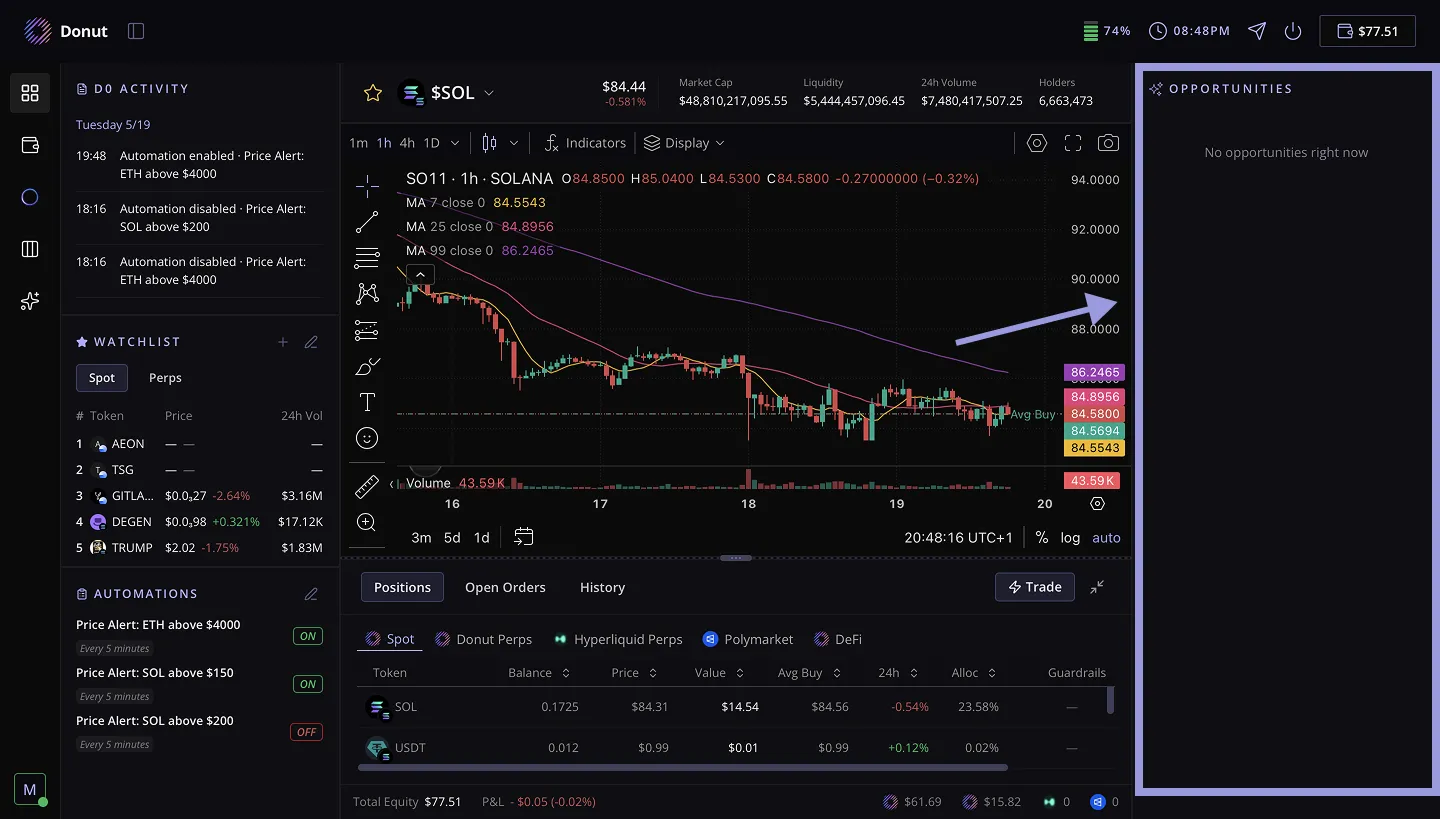
Position Panel
The Position Panel shows everything you have open across every venue in one place. No switching between accounts to piece together where you stand. Click through the tabs at the bottom — Spot, Donut Perps, Hyperliquid Perps, Polymarket, and DeFi — and each one shows your holdings for that venue. Every position shows you the token, your balance, current price, total value, average buy price, and how it has moved in the last 24 hours. If you want more detail on a specific position, click it to expand. You can close positions individually from here without touching anything else.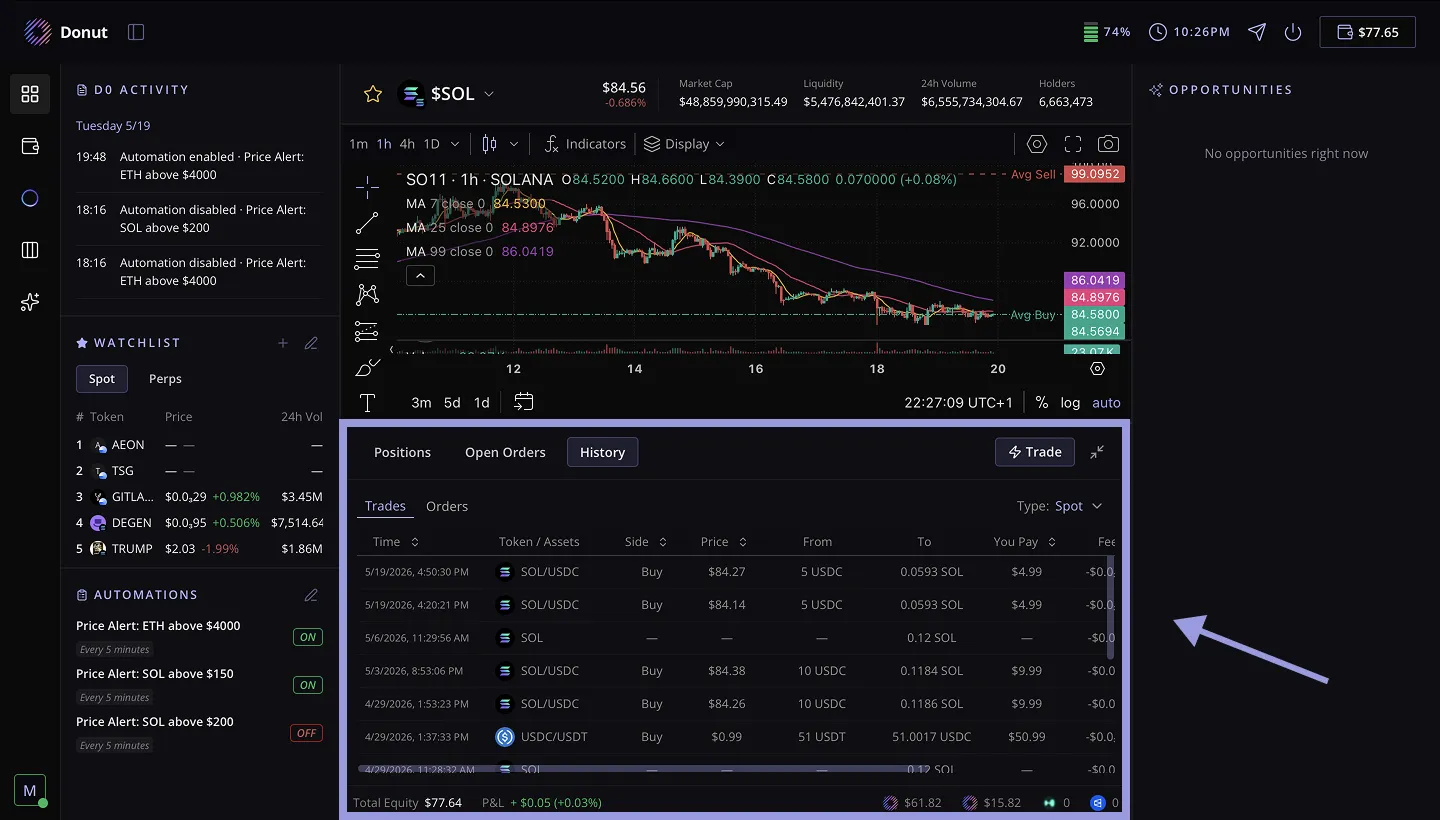
Chart Panel
The chart panel is built around TradingView-grade rendering plus D0’s own data layer. You get full candle/Heikin Ashi support, all the standard indicators (MACD, RSI, EMA, Bollinger Bands, VWAP), and drawing tools that persist per token. The key difference from a normal charting tool: D0 reads the chart with you. Send a screenshot in chat and your bot can describe the setup, identify patterns, and tell you what to watch for next. See Chart Reading for the full workflow.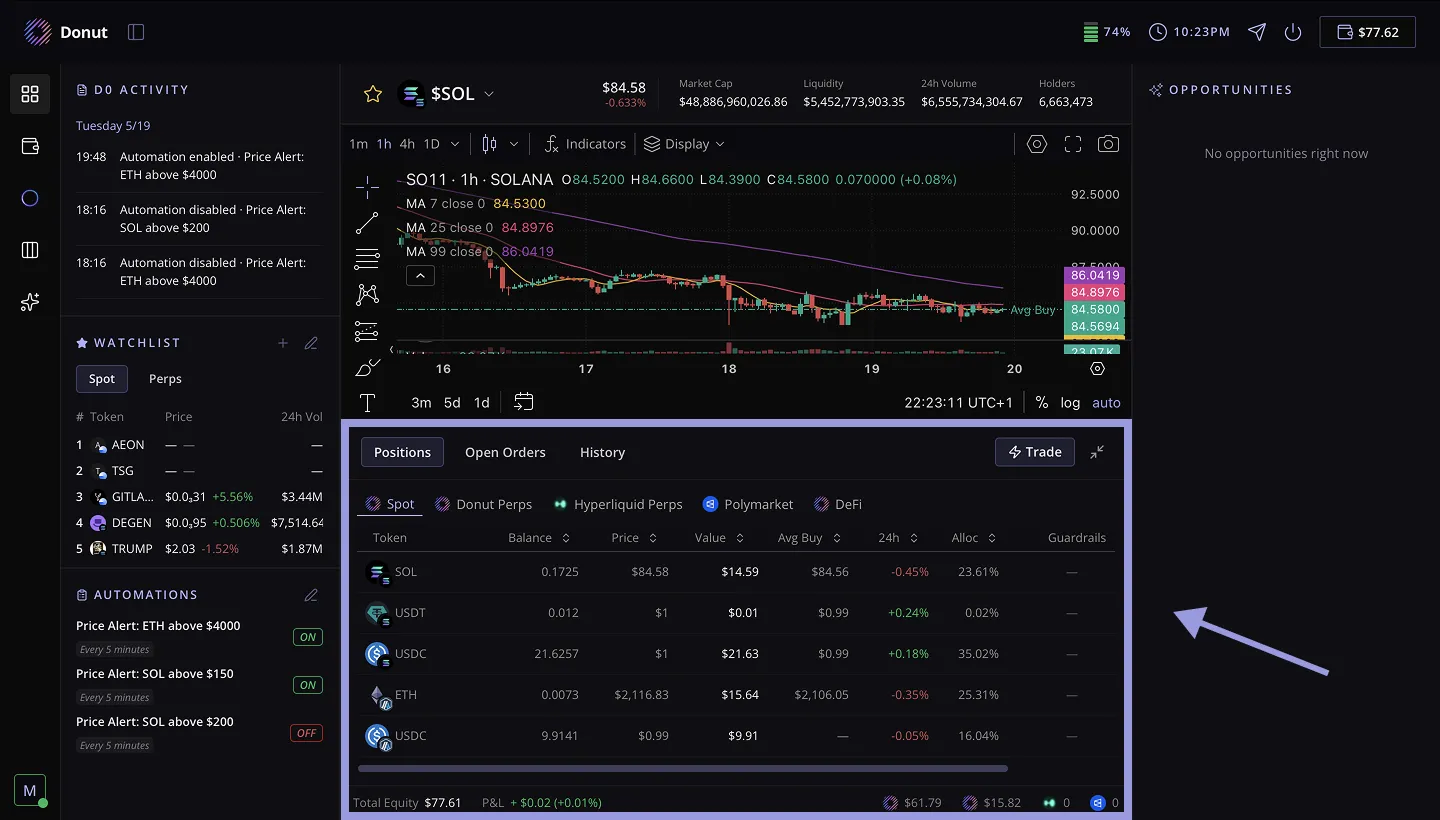
What Makes It Different
- Everything lives in one place. No tab switching between exchanges, wallets, and charting tools.
- The chat is connected. Anything you ask D0 in Telegram updates state here in real time, and vice versa.
- You can act from the Dashboard. Instant Trade, Execute on opportunities, close positions — without leaving the page.