> ## Documentation Index
> Fetch the complete documentation index at: https://docs-d0.donutbrowser.ai/llms.txt
> Use this file to discover all available pages before exploring further.
# Your First 10 Minutes
> A tour of the D0 console: the top bar, the left rail and its modules, the market header, positions, and the chat where everything starts.
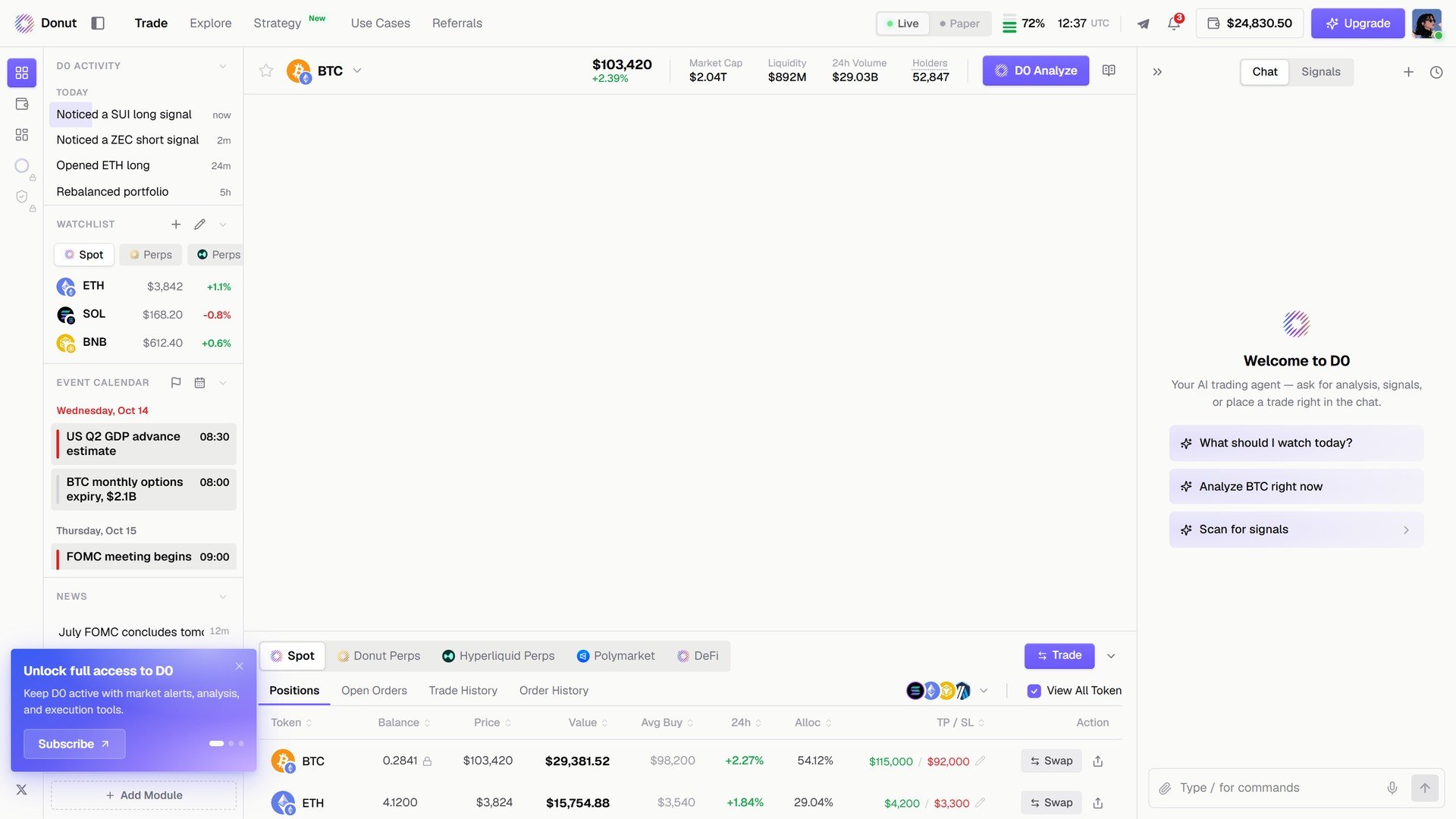
**Trade** is where you spend most of your time. The market and your positions are in the center, D0 is in the right panel, and your activity, watchlist, calendar, and news sit in the left panel.
 ## Layout
| Region | What's there |
| - | - |
| Top bar | **Trade**, **Explore**, **Strategy**, **Use Cases**, **Referrals**; the **Live / Paper** toggle; your usage meter and UTC clock; Telegram and notifications; your balance; **Upgrade**; your avatar (opens Settings) |
| Left rail | **Home**, **Portfolio**, **Personalized Dashboard**; two more destinations are marked *coming soon* |
| Left panel | **D0 Activity**, **Watchlist** (Spot and Perps tabs), **Event Calendar**, **News**, and **+ Add Module** |
| Center | The market header (★, token selector, price, market cap, liquidity, 24h volume, holders, **D0 Analyze**), the chart, and the positions table |
| Right panel | **Chat** and **Signals** tabs |
## The market header and positions
The header shows the selected market: price and 24h change, **Market Cap**, **Liquidity**, **24h Volume**, **Holders**, and the **D0 Analyze** button. Click the token name to switch markets; click ★ to add it to your Watchlist.
Below the chart, one tab per venue: **Spot**, **Donut Perps**, **Hyperliquid Perps**, **Polymarket**, **DeFi**. Each venue has **Positions**, **Open Orders**, **Trade History**, and **Order History**. The **Trade** button opens the order modal. See [The Trade Panel](/trade/trade-panel).
## The chat
The right panel opens on **Welcome to D0**: *Your AI trading agent — ask for analysis, signals, or place a trade right in the chat.* Three prompts get you started: **What should I watch today?**, **Analyze BTC right now**, **Scan for signals**. The composer at the bottom says **Type / for commands**; the microphone takes voice.
## Layout
| Region | What's there |
| - | - |
| Top bar | **Trade**, **Explore**, **Strategy**, **Use Cases**, **Referrals**; the **Live / Paper** toggle; your usage meter and UTC clock; Telegram and notifications; your balance; **Upgrade**; your avatar (opens Settings) |
| Left rail | **Home**, **Portfolio**, **Personalized Dashboard**; two more destinations are marked *coming soon* |
| Left panel | **D0 Activity**, **Watchlist** (Spot and Perps tabs), **Event Calendar**, **News**, and **+ Add Module** |
| Center | The market header (★, token selector, price, market cap, liquidity, 24h volume, holders, **D0 Analyze**), the chart, and the positions table |
| Right panel | **Chat** and **Signals** tabs |
## The market header and positions
The header shows the selected market: price and 24h change, **Market Cap**, **Liquidity**, **24h Volume**, **Holders**, and the **D0 Analyze** button. Click the token name to switch markets; click ★ to add it to your Watchlist.
Below the chart, one tab per venue: **Spot**, **Donut Perps**, **Hyperliquid Perps**, **Polymarket**, **DeFi**. Each venue has **Positions**, **Open Orders**, **Trade History**, and **Order History**. The **Trade** button opens the order modal. See [The Trade Panel](/trade/trade-panel).
## The chat
The right panel opens on **Welcome to D0**: *Your AI trading agent — ask for analysis, signals, or place a trade right in the chat.* Three prompts get you started: **What should I watch today?**, **Analyze BTC right now**, **Scan for signals**. The composer at the bottom says **Type / for commands**; the microphone takes voice.
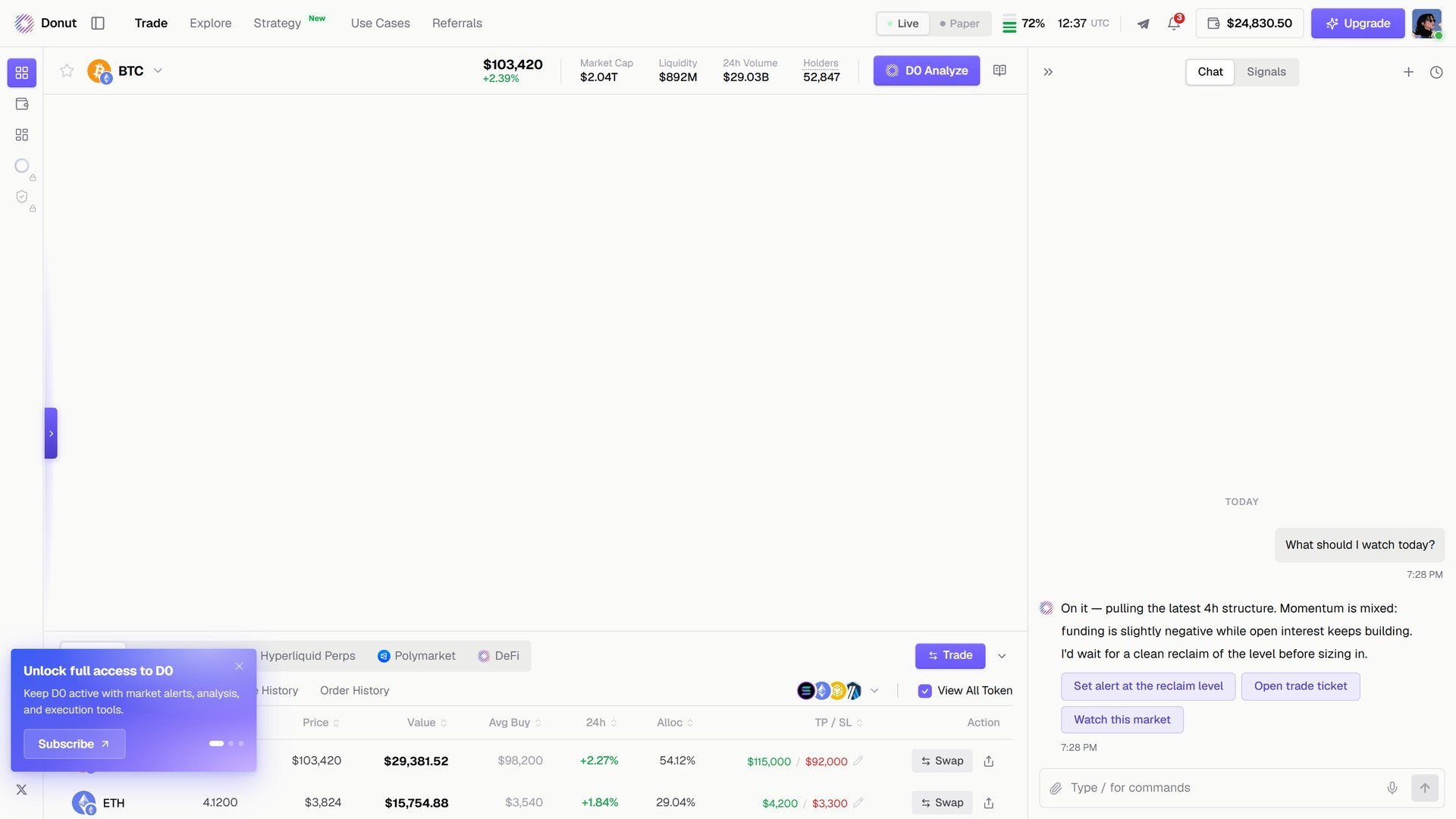
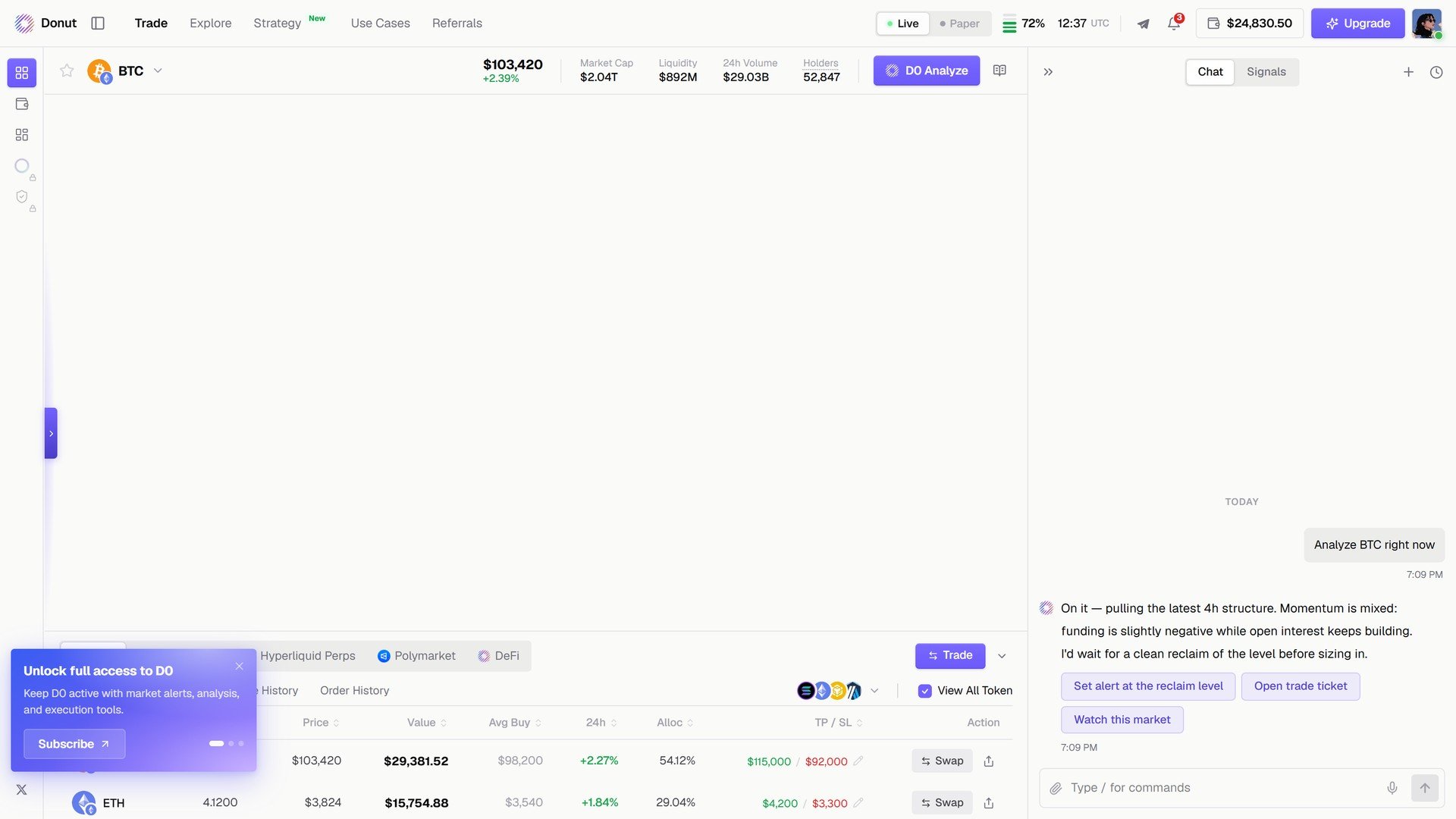 Every answer ends in actions. For a market read: **Set alert at the reclaim level**, **Open trade ticket**, **Watch this market**. For a portfolio read: **Analyze my portfolio**, **Reduce my BTC concentration**, **Draft a rebalance plan**.
 ## The Signals tab
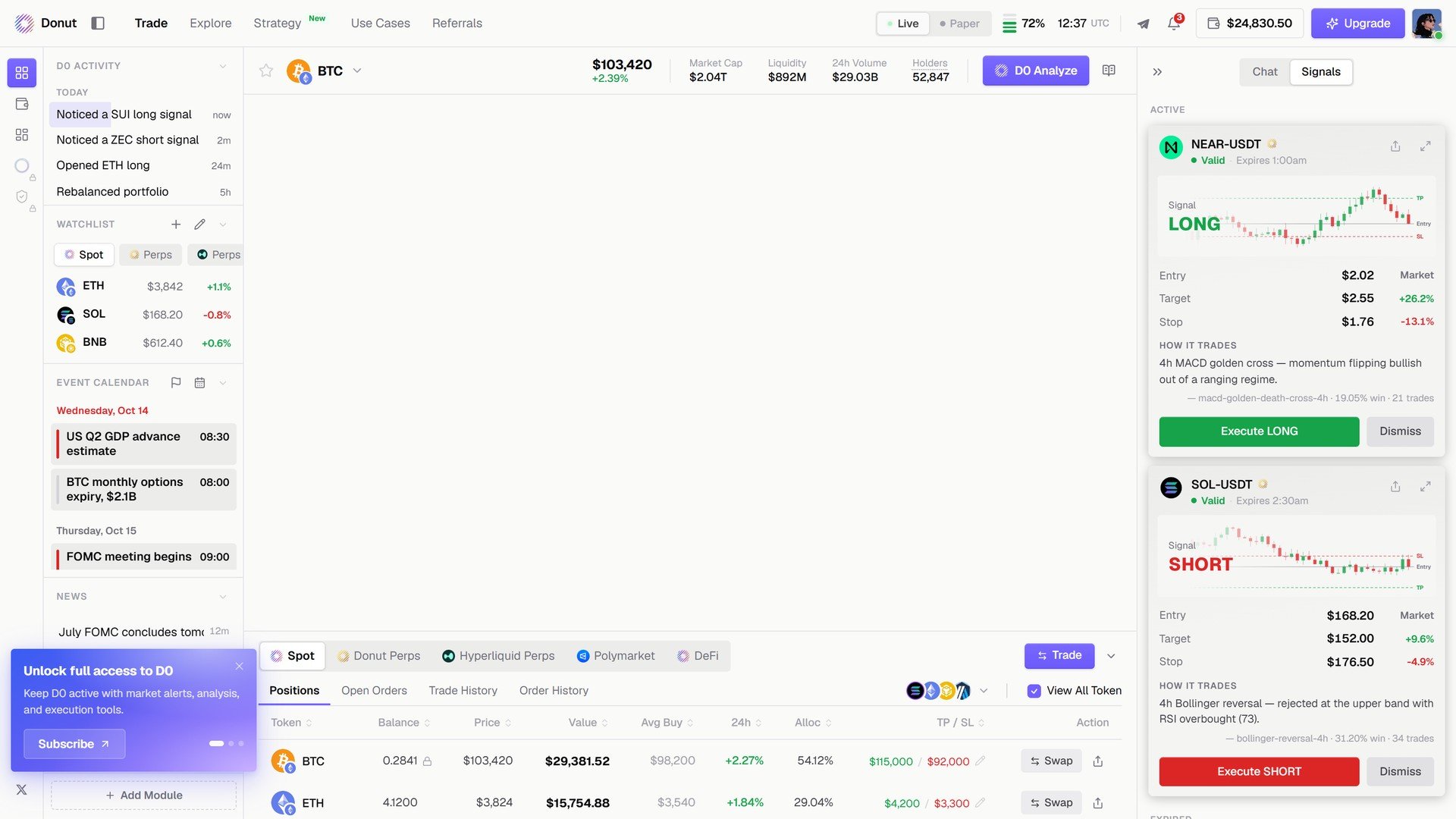
Switch the right panel to **Signals** and the cards D0 is tracking line up: market, direction, **Valid** or expired, entry, target, stop, and **How it trades** in one line. **Execute LONG** or **Execute SHORT** opens the order; **Dismiss** clears the card. See [Signals](/features/thorp-strategy).
## The Signals tab
Switch the right panel to **Signals** and the cards D0 is tracking line up: market, direction, **Valid** or expired, entry, target, stop, and **How it trades** in one line. **Execute LONG** or **Execute SHORT** opens the order; **Dismiss** clears the card. See [Signals](/features/thorp-strategy).
 ## The left panel
* **D0 Activity**: what D0 did and noticed, newest first (*Noticed a SUI long signal*, *Opened ETH long*, *Rebalanced portfolio*).
* **Watchlist**: your starred markets with price and 24h change, split into Spot and Perps.
* **Event Calendar**: dated macro and crypto events with times.
* **News**: headlines with age.
* **+ Add Module**: add **Manual Trade**, **Automation**, **Positions**, or **Portfolio** to the panel.
## The four core workflows
Click **D0 Analyze** on any market, or ask in chat. D0 answers with the read and three follow-up actions. See [D0 Analyze](/trade/do-analyze).
Click **Trade** under the chart, pick **Spot** or **Perps**, fill the order, confirm. Or take a signal card's **Execute** button. See [The Trade Panel](/trade/trade-panel).
Open **Strategy**, pick a strategy in the library, click **Run strategy**, set leverage, capital per signal, and a daily loss cap. See [Strategy Library](/strategies/strategy-library).
Open **Portfolio** in the left rail. Every venue in one book, with **Ask D0** for a risk read. See [Portfolio Overview](/portfolio/overview).
## Tips
**Live vs Paper** is the toggle in the top bar. Paper gives you \$100,000 in virtual funds and the same console. See [Live vs Paper Mode](/getting-started/live-vs-paper).
**Star markets from the header.** The Watchlist fills from the ★ next to the token name.
**Your avatar opens Settings:** account, usage, plan and billing, notifications, security. See [Settings](/reference/settings).
## What's next
* [The Trade Panel](/trade/trade-panel)
* [Explore](/explore/overview)
* [Strategy Library](/strategies/strategy-library)
This documentation is built and hosted on [Mintlify](https://mintlify.com), a developer documentation platform.
## The left panel
* **D0 Activity**: what D0 did and noticed, newest first (*Noticed a SUI long signal*, *Opened ETH long*, *Rebalanced portfolio*).
* **Watchlist**: your starred markets with price and 24h change, split into Spot and Perps.
* **Event Calendar**: dated macro and crypto events with times.
* **News**: headlines with age.
* **+ Add Module**: add **Manual Trade**, **Automation**, **Positions**, or **Portfolio** to the panel.
## The four core workflows
Click **D0 Analyze** on any market, or ask in chat. D0 answers with the read and three follow-up actions. See [D0 Analyze](/trade/do-analyze).
Click **Trade** under the chart, pick **Spot** or **Perps**, fill the order, confirm. Or take a signal card's **Execute** button. See [The Trade Panel](/trade/trade-panel).
Open **Strategy**, pick a strategy in the library, click **Run strategy**, set leverage, capital per signal, and a daily loss cap. See [Strategy Library](/strategies/strategy-library).
Open **Portfolio** in the left rail. Every venue in one book, with **Ask D0** for a risk read. See [Portfolio Overview](/portfolio/overview).
## Tips
**Live vs Paper** is the toggle in the top bar. Paper gives you \$100,000 in virtual funds and the same console. See [Live vs Paper Mode](/getting-started/live-vs-paper).
**Star markets from the header.** The Watchlist fills from the ★ next to the token name.
**Your avatar opens Settings:** account, usage, plan and billing, notifications, security. See [Settings](/reference/settings).
## What's next
* [The Trade Panel](/trade/trade-panel)
* [Explore](/explore/overview)
* [Strategy Library](/strategies/strategy-library)
This documentation is built and hosted on [Mintlify](https://mintlify.com), a developer documentation platform.